Back in March 2012, I announced that the F# Empty WPF project template had been enhanced to include a type provider from the FSharpx type providers collection. Today, another evolution of the F# Empty WPF template has occurred. The FSharpx.TypeProviders.Xaml type provider has been replaced with Reed Copsey's FsXaml for WPF type provider.
Building a Simple Example:
It's very easy to get started with the latest version of the template as well as FsXaml. Here the steps to create an overly simple example with the new version of the template, FxXaml and FSharp.ViewModule.Core (which is also inclueded in the template):
1. Create a new project with the latest version of the F# Empty Windows App (WPF) template.
2. Build the project and Enable the type provider when requested to do so. You can now run the project, which at this point simply displays a blank screen.
3. Open the MainWindow.xaml.fs file and replace the contents with the following:
4. Open the MainWindow.xaml file add the following to the Grid element:
After this change, the MainWindow.xaml file will look something like the following with one small different depending on what you named your project:
For additional examples checkout the demos in the FsXaml GitHub repo.
Showing posts with label WPF. Show all posts
Showing posts with label WPF. Show all posts
Sunday, November 30, 2014


Monday, March 26, 2012
A Nice Addition to the Empty WPF F# Template
A few days ago Steffen Formann announced a Xaml type provider that he and Johann Deneux have created that makes writing WPF apps in F# very easy. This type provider allows strongly typed access to the XAML, effectively providing the missing piece to allowing full F# WPF designer support. I've now updated the Empty WPF F# Template to include this type provider.
To use it, all you have to due is download/install the latest version of the F# Empty Windows App (WPF) template in VS11. This will generate an F# project with all the needed WPF assembly references. It also automatically installs the FSharpx.TypeProviders NuGet package and provides the starting point for creating WPF apps with the new Xaml type provider.
Here's a screenshot that's pretty similar to what Steffen showed in the announcement post. Note: The button and label were manually added after creating the project from the updated template.

To use it, all you have to due is download/install the latest version of the F# Empty Windows App (WPF) template in VS11. This will generate an F# project with all the needed WPF assembly references. It also automatically installs the FSharpx.TypeProviders NuGet package and provides the starting point for creating WPF apps with the new Xaml type provider.
Here's a screenshot that's pretty similar to what Steffen showed in the announcement post. Note: The button and label were manually added after creating the project from the updated template.

One other piece that can be helpful when creating WPF apps in F# is the XAML related item templates (i.e. Page, User Control, Window, etc). Item templates are provided via the F# XAML Item Templates extension found at http://visualstudiogallery.msdn.microsoft.com/06c6ece1-2084-4083-a0f7-934fce9d22fb.
Monday, February 6, 2012
Another Way To Kick-start F# WPF Apps
Over the last few years I've announced a number of project templates that are available on Visual Studio Gallery. A few of these have provided ways to kick-start F# WPF apps. I talked about one of these templates here. While these are nice for getting acquainted with building WPF apps in F# and/or F#+C#, the files needed for the included sample app may become a bother once you have a few of these apps under your belt. Because of this, I've released an F# only Empty WPF project template (an F#/C# Empty WPF template will likely be coming soon).
To get the new template, do the following:
1. In Visual Studio 2010 or 11, navigate to File -> New and select Online Templates (or just Online if using VS11).
2. Search for "Daniel Mohl" or "F# Empty Windows App" as shown below:

3. Select the template, click OK, and agree to the install.
While it's certainly not required to use the template, you can find the full source on my GitHub.
To get the new template, do the following:
1. In Visual Studio 2010 or 11, navigate to File -> New and select Online Templates (or just Online if using VS11).
2. Search for "Daniel Mohl" or "F# Empty Windows App" as shown below:

3. Select the template, click OK, and agree to the install.
While it's certainly not required to use the template, you can find the full source on my GitHub.
Monday, January 23, 2012
Making F# Windows Phone Development a Little Easier
About a month ago, I announced that most of the existing F# project templates on Visual Studio Gallery had been updated to include support for Visual Studio 11. In that post, I mentioned some new item templates that had been included in the update to the F# XAML Item Templates extension. This post provides a bit more information related to that update.
The F# XAML Item Templates extension was designed to make working with F# + WPF and Silverlight a little eaiser. I provided a brief overview of these features back in June. However, Windows Phone XAML related development was still lacking. The previous approach to adding XAML files was to either create a blank file, change the extension, and manually add the appropriate starting XAML or create the XAML from one of the C# item templates, remove the code-behind files, and tweak the resulting XAML. While neither of these options is extremely time consuming, it can quickly become annoying.
The latest update to this Visual Studio extension reduces this annoyance by providing F# Windows Phone 7 XAML item templates. Once this VSIX is installed, you can add a Windows Phone 7 XAML file by doing the following:
1. In a Windows Phone F# project, proceed with adding a new item as you normally would (i.e. Ctrl+Shift+A).
2. The resulting wizard (shown below) includes several new item templates starting with "F#..." that match the C# versions, but that do not generate C# code-behind files.

While you still have to write the small amount of F# code to wire this up, it makes life a little bit easier.
The F# XAML Item Templates extension was designed to make working with F# + WPF and Silverlight a little eaiser. I provided a brief overview of these features back in June. However, Windows Phone XAML related development was still lacking. The previous approach to adding XAML files was to either create a blank file, change the extension, and manually add the appropriate starting XAML or create the XAML from one of the C# item templates, remove the code-behind files, and tweak the resulting XAML. While neither of these options is extremely time consuming, it can quickly become annoying.
The latest update to this Visual Studio extension reduces this annoyance by providing F# Windows Phone 7 XAML item templates. Once this VSIX is installed, you can add a Windows Phone 7 XAML file by doing the following:
1. In a Windows Phone F# project, proceed with adding a new item as you normally would (i.e. Ctrl+Shift+A).
2. The resulting wizard (shown below) includes several new item templates starting with "F#..." that match the C# versions, but that do not generate C# code-behind files.

While you still have to write the small amount of F# code to wire this up, it makes life a little bit easier.
Thursday, November 24, 2011
Building F# Solutions in Visual Studio 11
I love to learn about new technology, seek to continually improve, and always look for ways to make things easier. I then do all that I can to share the knowledge, code, and/or tools that help to achieve these goals. With these goals in mind, I've joined with several friends in the creation of a new blogging community named Fresh Brewed Code. I'd strongly recommend keeping a close eye on the other Fresh Brewed Coders, as they will be producing some awesome content. You can see the announcement at http://freshbrewedcode.com/blog/2011/11/23/welcome-to-fresh-brewed-code/.
One of the other ways that I have attempted to achieve the goals mentioned above is through the creation of a number of Visual Studio project and item templates. Over the last several days, there have been updates to almost all of these templates. In this post I'll describe the changes that have been made--most of which have been implemented to allow support for the Developer Preview of Visual Studio 11 and F# 3.0.
I'm sure that you have used Visual Studio Gallery by now, but just in case you haven't yet had the chance, see http://bloggemdano.blogspot.com/2010/08/f-templates-now-on-visual-studio.html for how to get started. A screenshot of the Online templates view from the Developer Preview of Visual Studio 11 is shown below:

ASP.NET MVC:
F# and C# ASP.NET MVC3 - This project template generates the standard ASP.NET MVC 3 template output with separate projects for the view (ASPX in a C# project) and controllers/models (in a F# project). The latest release (version 1.3) adds support for Visual Studio 11 and F# 3.0. You will need to install the ASP.NET MVC 3 Tools Update (see http://www.asp.net/mvc/mvc3 and make sure to download/install the correct version for Visual Studio 10 or Visual Studio 11) to use this template.
F# C# MVC 3 - This is a dynamic project template that generates an empty ASP.NET MVC 3 solution with separate projects for view (C# - either ASPX or Razor), core (F#), and an optional F# project for unit tests. The template is based on the MSDN Magazine article entitled "Authoring an F#/C# VSIX Project Template" which can be found at http://msdn.microsoft.com/en-us/magazine/hh456399.aspx. You will need to install the ASP.NET MVC 3 Tools Update (see http://www.asp.net/mvc/mvc3 and make sure to download/install the correct version for Visual Studio 10 or Visual Studio 11) to use this template. Version 1.1 adds support for Visual Studio 11 and F# 3.0.
WPF:
F# Windows App (WPF, MVVM) - This project template generates a F# WPF solution with logical separation between View, ViewModel, Model, and Repository. The latest release (version 1.8) resolves a few bugs and adds support for Visual Studio 11 and F# 3.0.
F# and C# Windows App (WPF, MVVM) - This is a project template that generates a WPF solution with separation between View (C#), ViewModel (F#), Model (F#), and Repository (F#). The latest release (version 1.7) resolves a few bugs and adds support for Visual Studio 11 and F# 3.0.
Web Service:
F# and C# Web Service (ASP.NET, WSDL) - This is a project template that generates a Web Service (WSDL) solution with separate projects for web (C#), services (F#), and contracts (F#). The underlying technology is Windows Communication Foundation. Version 1.5 adds support for Visual Studio 11 and F# 3.0.
Silverlight:
F# C# Web App (Silverlight) - This project template generates a Silverlight solution with separate projects for View (C#) and Core (F#). The Core project includes logical separation between ViewModel, Model, and RemoteFacade. You should install the Silverlight 4 developer tools and/or the Silverlight 5 developer tools plus the April 2011 F# CTP. Version 1.2 adds support for Visual Studio 11 and includes a template wizard dialog that allows selection of Silverlight version 4 or 5. The determination of whether to display the wizard dialog is triggered off of the installed F# Silverlight client version. It will only display if both 4 and 5 are installed. Note: There are not yet F# 3.0 Silverlight DLLs. Because of this, the current version only support F# 2.0.
F# Web Application (Silverlight) - This F# project template generates a Silverlight project with logical separation between View, ViewModel, Model, and RemoteFacade. You should install the Silverlight 4 developer tools and/or the Silverlight 5 developer tools plus the April 2011 F# CTP. Version 1.4 adds support for Visual Studio 11 and includes a dialog that allows selection of the desired Silverlight Version 4 or 5 (depending on installations). Note: There are not yet F# 3.0 Silverlight DLLs. Because of this, the current version only support F# 2.0.
F# Empty Web Application (Silverlight) - This project template is similar to the F# Web Application (Silverlight) template; however, it does not include all of the example code. You should install the Silverlight 4 developer tools and/or the Silverlight 5 developer tools plus the April 2011 F# CTP. Version 1.1 adds support for Visual Studio 11, removes the C# host application, adds support to generate an HTML test file, and provides functionality to select the desired Silverlight version 4 or 5 (depending on the installation). Note: There are not yet F# 3.0 Silverlight DLLs. Because of this, the current version only support F# 2.0.
F# 2.0 Silverlight Library (for Visual Studio 11) - This is a project template that generates a F# 2.0 Silverlight project. It targets Visual Studio 11 only and will only be needed temporarily. You can read more about this template at http://bloggemdano.blogspot.com/2011/11/f-silverlight-library-template-in.html. Note: There are not yet F# 3.0 Silverlight DLLs. Because of this, the current version only support F# 2.0.
XAML Item Templates:
F# XAML Item Templates - This Visual Studio Extension provides a number of item templates that make working with F# XAML based projects (i.e. the WPF, Silverlight, and/or Windows Phone 7 project templates) much easier. Without these item templates adding new XAML files to one of these projects is a bit of a pain. You have to create a text or xml file, change the extension to .xaml, manually add the default XAML code, and change the Build Action for the .xaml file to Resource. Version 1.1 adds item templates for Windows Phone 7 (I'll talk more about this in a future post) and adds support for Visual Studio 11.
Project Templates That Do Not Currently Support Visual Studio 11:
Since the Developer Preview of Visual Studio 11 does not currently support Windows Phone 7 development, the Windows Phone 7 templates (i.e. C# WP7 with Caliburn.Micro, F# and C# Win Phone App (Silverlight), F# and C# Win Phone List App (Silverlight), and F# and C# Win Phone Panorama) have not yet been updated to support Visual Studio 11. This will be added as soon as a release of Visual Studio 11 is provided that does include this support.
F# and C# Web App (ASP.NET, MVC 2) - There is not currently an ASP.NET MVC 2 install for Visual Studio 11 and I don't anticipate one to ever be provided. Because of this, I have not (and do not intend to) add support for Visual Studio 11 to this project template.
One of the other ways that I have attempted to achieve the goals mentioned above is through the creation of a number of Visual Studio project and item templates. Over the last several days, there have been updates to almost all of these templates. In this post I'll describe the changes that have been made--most of which have been implemented to allow support for the Developer Preview of Visual Studio 11 and F# 3.0.
I'm sure that you have used Visual Studio Gallery by now, but just in case you haven't yet had the chance, see http://bloggemdano.blogspot.com/2010/08/f-templates-now-on-visual-studio.html for how to get started. A screenshot of the Online templates view from the Developer Preview of Visual Studio 11 is shown below:

ASP.NET MVC:
F# and C# ASP.NET MVC3 - This project template generates the standard ASP.NET MVC 3 template output with separate projects for the view (ASPX in a C# project) and controllers/models (in a F# project). The latest release (version 1.3) adds support for Visual Studio 11 and F# 3.0. You will need to install the ASP.NET MVC 3 Tools Update (see http://www.asp.net/mvc/mvc3 and make sure to download/install the correct version for Visual Studio 10 or Visual Studio 11) to use this template.
F# C# MVC 3 - This is a dynamic project template that generates an empty ASP.NET MVC 3 solution with separate projects for view (C# - either ASPX or Razor), core (F#), and an optional F# project for unit tests. The template is based on the MSDN Magazine article entitled "Authoring an F#/C# VSIX Project Template" which can be found at http://msdn.microsoft.com/en-us/magazine/hh456399.aspx. You will need to install the ASP.NET MVC 3 Tools Update (see http://www.asp.net/mvc/mvc3 and make sure to download/install the correct version for Visual Studio 10 or Visual Studio 11) to use this template. Version 1.1 adds support for Visual Studio 11 and F# 3.0.
WPF:
F# Windows App (WPF, MVVM) - This project template generates a F# WPF solution with logical separation between View, ViewModel, Model, and Repository. The latest release (version 1.8) resolves a few bugs and adds support for Visual Studio 11 and F# 3.0.
F# and C# Windows App (WPF, MVVM) - This is a project template that generates a WPF solution with separation between View (C#), ViewModel (F#), Model (F#), and Repository (F#). The latest release (version 1.7) resolves a few bugs and adds support for Visual Studio 11 and F# 3.0.
Web Service:
F# and C# Web Service (ASP.NET, WSDL) - This is a project template that generates a Web Service (WSDL) solution with separate projects for web (C#), services (F#), and contracts (F#). The underlying technology is Windows Communication Foundation. Version 1.5 adds support for Visual Studio 11 and F# 3.0.
Silverlight:
F# C# Web App (Silverlight) - This project template generates a Silverlight solution with separate projects for View (C#) and Core (F#). The Core project includes logical separation between ViewModel, Model, and RemoteFacade. You should install the Silverlight 4 developer tools and/or the Silverlight 5 developer tools plus the April 2011 F# CTP. Version 1.2 adds support for Visual Studio 11 and includes a template wizard dialog that allows selection of Silverlight version 4 or 5. The determination of whether to display the wizard dialog is triggered off of the installed F# Silverlight client version. It will only display if both 4 and 5 are installed. Note: There are not yet F# 3.0 Silverlight DLLs. Because of this, the current version only support F# 2.0.
F# Web Application (Silverlight) - This F# project template generates a Silverlight project with logical separation between View, ViewModel, Model, and RemoteFacade. You should install the Silverlight 4 developer tools and/or the Silverlight 5 developer tools plus the April 2011 F# CTP. Version 1.4 adds support for Visual Studio 11 and includes a dialog that allows selection of the desired Silverlight Version 4 or 5 (depending on installations). Note: There are not yet F# 3.0 Silverlight DLLs. Because of this, the current version only support F# 2.0.
F# Empty Web Application (Silverlight) - This project template is similar to the F# Web Application (Silverlight) template; however, it does not include all of the example code. You should install the Silverlight 4 developer tools and/or the Silverlight 5 developer tools plus the April 2011 F# CTP. Version 1.1 adds support for Visual Studio 11, removes the C# host application, adds support to generate an HTML test file, and provides functionality to select the desired Silverlight version 4 or 5 (depending on the installation). Note: There are not yet F# 3.0 Silverlight DLLs. Because of this, the current version only support F# 2.0.
F# 2.0 Silverlight Library (for Visual Studio 11) - This is a project template that generates a F# 2.0 Silverlight project. It targets Visual Studio 11 only and will only be needed temporarily. You can read more about this template at http://bloggemdano.blogspot.com/2011/11/f-silverlight-library-template-in.html. Note: There are not yet F# 3.0 Silverlight DLLs. Because of this, the current version only support F# 2.0.
XAML Item Templates:
F# XAML Item Templates - This Visual Studio Extension provides a number of item templates that make working with F# XAML based projects (i.e. the WPF, Silverlight, and/or Windows Phone 7 project templates) much easier. Without these item templates adding new XAML files to one of these projects is a bit of a pain. You have to create a text or xml file, change the extension to .xaml, manually add the default XAML code, and change the Build Action for the .xaml file to Resource. Version 1.1 adds item templates for Windows Phone 7 (I'll talk more about this in a future post) and adds support for Visual Studio 11.
Project Templates That Do Not Currently Support Visual Studio 11:
Since the Developer Preview of Visual Studio 11 does not currently support Windows Phone 7 development, the Windows Phone 7 templates (i.e. C# WP7 with Caliburn.Micro, F# and C# Win Phone App (Silverlight), F# and C# Win Phone List App (Silverlight), and F# and C# Win Phone Panorama) have not yet been updated to support Visual Studio 11. This will be added as soon as a release of Visual Studio 11 is provided that does include this support.
F# and C# Web App (ASP.NET, MVC 2) - There is not currently an ASP.NET MVC 2 install for Visual Studio 11 and I don't anticipate one to ever be provided. Because of this, I have not (and do not intend to) add support for Visual Studio 11 to this project template.
Sunday, July 17, 2011
WPF Behaviors in the F# WPF Project Templates
In my last post, I mentioned that I was working on a few enhancements to the my F# WPF Project Templates that are out on Visual Studio Gallery. I'm happy to say that the new versions of the F# and C# Windows App (WPF, MVVM) and F# Windows App (WPF, MVVM) templates are now available.
What Was Changed?
For the F# Windows App (WPF, MVVM) template, a few WPF behaviors have been added. I'll talk about these changes in a bit (for those that can't wait, see http://fssnip.net/62 and http://fssnip.net/6h).
The F# and C# Windows App (WPF, MVVM) template includes all of the same changes as the F# only template. Additionally, I've taken the multiple F# projects that were previously provided in this template and coalesced them into one F# project. I believe that this change better reflects the real-world use of this template.
You Mentioned WPF Behaviors?
The biggest change to the templates is the addition of examples of a few different types of WPF behaviors. These templates include examples of event to command as well as a type converter. The event to command implementation is Blendable (meaning that it plays well with Expression Blend) and is loosely based on the MVVM Light Toolkit EventToCommand implementation.
Here's the code:
Here's the XAML that uses this code:
The value converter example uses a ConverterBase class that simplifies the creation of any concrete implementations. This base class uses a combination of functional and object-oriented programming to provide a default implementation of Convert and ConvertBack. The child class can then provide a function to override the implementation of either or both of these methods. For the sake of brevity, I will not post the ConvertBase code here, but you can go to http://fssnip.net/62 to see it.
The concrete implementation that is provided as an example in these project templates is shown below:
This can be used in XAML like this:
While I don't have an example in these templates of an Attached Property written in F#, it is worth noting that you can find just such an example at http://fssnip.net/69.
What Was Changed?
For the F# Windows App (WPF, MVVM) template, a few WPF behaviors have been added. I'll talk about these changes in a bit (for those that can't wait, see http://fssnip.net/62 and http://fssnip.net/6h).
The F# and C# Windows App (WPF, MVVM) template includes all of the same changes as the F# only template. Additionally, I've taken the multiple F# projects that were previously provided in this template and coalesced them into one F# project. I believe that this change better reflects the real-world use of this template.
You Mentioned WPF Behaviors?
The biggest change to the templates is the addition of examples of a few different types of WPF behaviors. These templates include examples of event to command as well as a type converter. The event to command implementation is Blendable (meaning that it plays well with Expression Blend) and is loosely based on the MVVM Light Toolkit EventToCommand implementation.
Here's the code:
namespace FSharpWpfMvvmTemplate.Behavior

open System
open System.Windows
open System.Windows.Input
open System.Windows.Interactivity

type EventToCommand() =
    inherit TriggerAction<DependencyObject>()
    [<DefaultValue(false)>]
    static val mutable private CommandProperty:DependencyProperty
    [<DefaultValue(false)>]
    static val mutable private CommandParameterProperty:DependencyProperty

    /// Set the command dependency property
    static do
        EventToCommand.CommandProperty <-
            DependencyProperty.Register("Command",
                typeof<ICommand>, typeof<EventToCommand>)

    /// Set the command parameter dependency property
    static do
        EventToCommand.CommandParameterProperty <-
            DependencyProperty.Register("CommandParameter",
                typeof<obj>, typeof<EventToCommand>)

    /// Get/Set the Command
    member this.Command
        with get() = this.GetValue EventToCommand.CommandProperty :?> ICommand
        and set value = this.SetValue(EventToCommand.CommandProperty, value)

    /// Get/Set the CommandParameter
    member this.CommandParameter
        with get() = this.GetValue EventToCommand.CommandParameterProperty
        and set value = this.SetValue(EventToCommand.CommandParameterProperty, value)

    /// Implement the Invoke method from TriggerAction to execute the command
    override this.Invoke parameter =
        let command = this.Command
        let commandParameter = match this.CommandParameter with
                               | null -> parameter
                               | commandParam -> commandParam
        if command <> null && command.CanExecute(commandParameter) then
            command.Execute(commandParameter)
Here's the XAML that uses this code:
        <Button Grid.Row="2" Command="{Binding ApproveExpenseReportCommand}"
                Style="{StaticResource buttonStyle}" Content="Approve"
                Grid.Column="1" Margin="0,10,53,0">
            <i:Interaction.Triggers>
                <i:EventTrigger EventName="MouseEnter">
                    <Behavior:EventToCommand
                            Command="{Binding MouseEnterButtonCommand}"
                            CommandParameter="Approve" />
                </i:EventTrigger>
                <i:EventTrigger EventName="MouseLeave">
                    <Behavior:EventToCommand
                            Command="{Binding MouseLeaveButtonCommand}" />
                </i:EventTrigger>
            </i:Interaction.Triggers>
        </Button>
The value converter example uses a ConverterBase class that simplifies the creation of any concrete implementations. This base class uses a combination of functional and object-oriented programming to provide a default implementation of Convert and ConvertBack. The child class can then provide a function to override the implementation of either or both of these methods. For the sake of brevity, I will not post the ConvertBase code here, but you can go to http://fssnip.net/62 to see it.
The concrete implementation that is provided as an example in these project templates is shown below:
namespace FSharpWpfMvvmTemplate.Behavior

open System
open System.Windows
open System.Windows.Data
open System.Windows.Media
open ConverterBase

/// Returns Visibility.Visible if the string is not null or empty
type StringExistsToVisibilityConverter() =
    inherit ConverterBase()
    let convertFunc = fun (v:obj) _ _ _ ->
        match String.IsNullOrEmpty(string v) with
        | false -> Visibility.Visible
        | _ -> Visibility.Collapsed
        :> obj
    override this.Convert = convertFunc
This can be used in XAML like this:
<TextBlock Grid.Row="3" HorizontalAlignment="Center" Margin="0,10,0,0"
                FontSize="12" FontWeight="Bold"
                Grid.ColumnSpan="2" Text="{Binding LastApprovalDisplayMessage}"
                Visibility="{Binding Path=LastApprovalDisplayMessage,
                            Converter={StaticResource StringExistsToVisibility}}" />
While I don't have an example in these templates of an Attached Property written in F#, it is worth noting that you can find just such an example at http://fssnip.net/69.
Tuesday, July 5, 2011
A Few Items of Note
In this post, I'm going to highlight a few things that I have been working on that aren't big enough to warrant their own blog entry, but that are worth pointing out. Note: If you follow me on Twitter (i.e. @dmohl) you may have already heard about these things.
1. In Feb. of this year, I blogged about the F# PowerPack being added to NuGet gallery. Since that time, there have been several requests to add the .NET 4 binaries to that NuGet package. I'm happy to say that a new version of the FSPowerPack.Community package has been uploaded that includes these binaries.
2. In Jan. of this year, an F# ASP.NET MVC 3 template was announced. There have been a few reports of an exception on some operating systems during the extension installation that points to a specific path that is too long. For those of you who are experiencing this error, there is a VSIX with a reduced path length available for download at https://sites.google.com/site/danodocs/Home/FSMVC3_min.vsix.
3. Have you visited the F# Snippets site yet? If not, I strongly recommend checking it out. While you are there, have a look at the WPF/Silverlight Value Converter base class and sample concrete implementation as well as an example of a WPF/Silverlight Attached Property. I'd love to hear what you think. Along these lines, I've been working on a few additions to the F# WPF templates that have been announced on this blog. If you have any enhancement requests, send them my way.
1. In Feb. of this year, I blogged about the F# PowerPack being added to NuGet gallery. Since that time, there have been several requests to add the .NET 4 binaries to that NuGet package. I'm happy to say that a new version of the FSPowerPack.Community package has been uploaded that includes these binaries.
2. In Jan. of this year, an F# ASP.NET MVC 3 template was announced. There have been a few reports of an exception on some operating systems during the extension installation that points to a specific path that is too long. For those of you who are experiencing this error, there is a VSIX with a reduced path length available for download at https://sites.google.com/site/danodocs/Home/FSMVC3_min.vsix.
3. Have you visited the F# Snippets site yet? If not, I strongly recommend checking it out. While you are there, have a look at the WPF/Silverlight Value Converter base class and sample concrete implementation as well as an example of a WPF/Silverlight Attached Property. I'd love to hear what you think. Along these lines, I've been working on a few additions to the F# WPF templates that have been announced on this blog. If you have any enhancement requests, send them my way.
Thursday, June 30, 2011
F# XAML Item Templates Now on Visual Studio Gallery
A new VS2010 extension is now available on Visual Studio Gallery that provides several XAML related item templates for F# projects. The provided item templates include Window for WPF as well as Page, UserControl, and ResourceDictionary for Silverlight and WPF.
To get started, do the following:
1. Download and install the extension from http://visualstudiogallery.msdn.microsoft.com/06c6ece1-2084-4083-a0f7-934fce9d22fb or through the Extention Manager in Visual Studio 2010 as shown below (Extension Manager can be found under Tools -> Extension Manager..):

2. Once installed, you will see the following option available in the Add New Item wizard for F# Silverlight projects:

3. For F# WPF projects, the Add New Item wizard will look like the following:
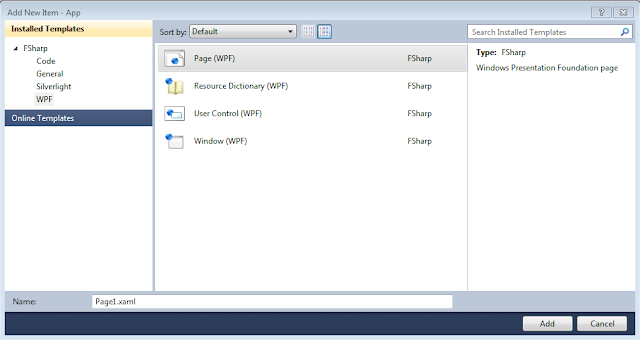
These item templates complement the existing F# WPF and Silverlight project templates quite well. Here is a list of a few of these project templates that are currently available on Visual Studio Gallery:
F# Web Application (Silverlight)
WPF:
F# App Template with Theme
F# Windows App (WPF, MVVM)
F# WPF Application
As usual you can find the source on my github (https://github.com/dmohl/FsXAMLItemTemplate).
To get started, do the following:
1. Download and install the extension from http://visualstudiogallery.msdn.microsoft.com/06c6ece1-2084-4083-a0f7-934fce9d22fb or through the Extention Manager in Visual Studio 2010 as shown below (Extension Manager can be found under Tools -> Extension Manager..):

2. Once installed, you will see the following option available in the Add New Item wizard for F# Silverlight projects:

3. For F# WPF projects, the Add New Item wizard will look like the following:

These item templates complement the existing F# WPF and Silverlight project templates quite well. Here is a list of a few of these project templates that are currently available on Visual Studio Gallery:
Silverlight:
WPF:
F# App Template with Theme
F# Windows App (WPF, MVVM)
F# WPF Application
As usual you can find the source on my github (https://github.com/dmohl/FsXAMLItemTemplate).
Monday, September 6, 2010
Pure-F# Templates Now Support the Visual Studio 2010 Shell SKU
I've been meaning to write this post for a few weeks now. With the announcement of the F# 2.0 standalone tools update for Visual Studio 2010 Shell, I have updated the pure-F# templates to support the IntegratedShell SKU. This includes templates F# Windows App (WPF, MVVM) and F# Web Application (Silverlight). Note: The F# Web Application template includes a C# application for the purpose of providing a hosting example. This C# hosting application will not be created successfully when using only the F# 2.0 standalone tools with Visual Studio 2010 Shell. Since this is not essential for the development of the actual Silverlight application, I decided to include IntegratedShell SKU support for this template with this as a known limitation.
Monday, June 28, 2010
WPF MVVM Multi-Project Template: A Polyglot Approach
In my last post, I provided a WPF MVVM multi-project template comprised entirely of F# projects. While that approach is exciting, I found that having the Views in an F# project caused more pain than gain. As an advocate for using the right tool for the job, I have created a new WPF MVVM multi-project template composed of an C# View project, an F# ViewModel project, and an F# Model project. Additionally, this version includes an F# Repository project and an F# project called FSharpIoC that provides inversion of control functionality (this can easily be replaced with the IoC contrainer of your choice).
The F# code did not change significantly between this version and the last; however, the ExpenseItHomeViewModel.fs has been cleaned up due to refactoring and the introduction of the ExpenseReportRepository.
Here's the code:
You can find the template installer here and the full source at http://github.com/dmohl/PolyglotWpfMvvmTemplate.
The F# code did not change significantly between this version and the last; however, the ExpenseItHomeViewModel.fs has been cleaned up due to refactoring and the introduction of the ExpenseReportRepository.
Here's the code:
namespace FSharpWpfMvvmTemplate.ViewModel

open System
open System.Windows
open System.Windows.Data
open System.Windows.Input
open System.ComponentModel
open System.Collections.ObjectModel
open FSharpWpfMvvmTemplate.Model
open FSharpWpfMvvmTemplate.Repository

type ExpenseItHomeViewModel(expenseReportRepository : ExpenseReportRepository)  =
    inherit ViewModelBase()
    let mutable selectedExpenseReport =
        {Name=""; Department=""; ExpenseLineItems = []}
    new () = ExpenseItHomeViewModel(
                  FSharpIoC.IoC.GetIoC.Resolve<ExpenseReportRepository>())
    member x.ExpenseReports =
        new ObservableCollection<ExpenseReport>(
            expenseReportRepository.GetAllExpenseReports())
    member x.ApproveExpenseReportCommand =
        new RelayCommand ((fun canExecute -> true), (fun action -> x.ApproveExpenseReport))
    member x.SelectedExpenseReport
        with get () = selectedExpenseReport
        and set value =
            selectedExpenseReport <- value
            x.OnPropertyChanged "SelectedExpenseReport"
    member x.ApproveExpenseReport =
        MessageBox.Show(sprintf "Expense report approved for %s" x.SelectedExpenseReport.Name) |> ignore
You can find the template installer here and the full source at http://github.com/dmohl/PolyglotWpfMvvmTemplate.
Monday, June 21, 2010
An F# WPF MVVM Project Template
I've been planning for a while to create an F# WPF MVVM Template to add to the other templates that have been announced on this blog. A resent post by Mark Pearl provided a great simple example which helped kick me into gear and bring this plan to fruition.
To get us up to date, here are the links to the other templates that I have created:
- Standard WCF Template
- Standard ASP.NET MVC 2 Template
This particular template is slightly different than the others. While the others had most or all of the code written in F#, the views or endpoints were still provided via a C# project. In contrast, this F# WPF MVVM template contains only F# projects.
What to Expect:
The code provided by this template creates an application that is loosely based on ExpenseIt (A simple expense report app. defined on this MSDN page). The following screenshot displays the produced application in action:

The Model:
The model for this application is comprised of two simple records:
The view models are fairly standard. Each view model inherits from a ViewModelBase class. The ExpenseItHomeViewModel class contains most of the code. Since these are the two most interesting classes associated with view models, they will be the only two shown.
ViewModelBase.fs
The views are similar to views used in any WPF MVVM application. The solution has three XAML files: ApplicationResources.xaml, MainWindow.xaml, and ExpenseItHome.xaml. Since ExpenseItHome.xaml is the most interesting of these three, it is provided below:
To get us up to date, here are the links to the other templates that I have created:
- Standard WCF Template
- Standard ASP.NET MVC 2 Template
This particular template is slightly different than the others. While the others had most or all of the code written in F#, the views or endpoints were still provided via a C# project. In contrast, this F# WPF MVVM template contains only F# projects.
What to Expect:
The code provided by this template creates an application that is loosely based on ExpenseIt (A simple expense report app. defined on this MSDN page). The following screenshot displays the produced application in action:

The Model:
The model for this application is comprised of two simple records:
type Expense =
    { ExpenseType : string
      ExpenseAmount : string}

type ExpenseReport =
    { Name : string
      Department : string
      ExpenseLineItems : seq<expense>}
The View Models:
The view models are fairly standard. Each view model inherits from a ViewModelBase class. The ExpenseItHomeViewModel class contains most of the code. Since these are the two most interesting classes associated with view models, they will be the only two shown.
ViewModelBase.fs
namespace FSharpWpfMvvmTemplate.ViewModel

open System
open System.Windows
open System.Windows.Input
open System.ComponentModel

type ViewModelBase() =
    let propertyChangedEvent = new DelegateEvent<PropertyChangedEventHandler>()
    interface INotifyPropertyChanged with
        [<CLIEvent>]
        member x.PropertyChanged = propertyChangedEvent.Publish
    member x.OnPropertyChanged propertyName =
        propertyChangedEvent.Trigger([| x; new PropertyChangedEventArgs(propertyName) |])
ExpenseItHomeViewModel.fs
namespace FSharpWpfMvvmTemplate.ViewModel

open System
open System.Xml
open System.Windows
open System.Windows.Data
open System.Windows.Input
open System.ComponentModel
open System.Collections.ObjectModel
open FSharpWpfMvvmTemplate.Model

type ExpenseItHomeViewModel =
    [<DefaultValue(false)>] val mutable _collectionView : ICollectionView
    [<DefaultValue(false)>] val mutable _expenseReports : ObservableCollection<ExpenseReport>
    new () as x = {_expenseReports = new ObservableCollection<ExpenseReport>();
                   _collectionView = null} then x.Initialize()
    inherit ViewModelBase
    member x.Initialize() =
        x._expenseReports <- x.BuildExpenseReports()
        x._collectionView <- CollectionViewSource.GetDefaultView(x._expenseReports)
        x._collectionView.CurrentChanged.AddHandler(
            new EventHandler(fun s e -> x.OnPropertyChanged "SelectedExpenseReport"))
    member x.BuildExpenseReports() =
        let collection = new ObservableCollection<ExpenseReport>()
        let mike = {Name="Mike"
                    Department="Legal"
                    ExpenseLineItems =
                        [{ExpenseType="Lunch"
                          ExpenseAmount="50"};
                        {ExpenseType="Transportation"
                         ExpenseAmount="50"}]}
        collection.Add(mike)
        let lisa = {Name="Lisa"
                    Department="Marketing"
                    ExpenseLineItems =
                        [{ExpenseType="Document printing"
                          ExpenseAmount="50"};
                        {ExpenseType="Gift"
                         ExpenseAmount="125"}]}
        collection.Add(lisa)
        let john = {Name="John"
                    Department="Engineering"
                    ExpenseLineItems =
                        [{ExpenseType="Magazine subscription"
                          ExpenseAmount="50"};
                        {ExpenseType="New machine"
                         ExpenseAmount="600"};
                        {ExpenseType="Software"
                         ExpenseAmount="500"}]}
        collection.Add(john)
        let mary = {Name="Mary"
                    Department="Finance"
                    ExpenseLineItems =
                        [{ExpenseType="Dinner"
                          ExpenseAmount="100"}]}
        collection.Add(mary)
        collection
    member x.ExpenseReports : ObservableCollection<ExpenseReport> = x._expenseReports
    member x.ApproveExpenseReportCommand =
        new RelayCommand ((fun canExecute -> true), (fun action -> x.ApproveExpenseReport))
    member x.SelectedExpenseReport =
        x._collectionView.CurrentItem :?> ExpenseReport
    member x.ApproveExpenseReport =
        MessageBox.Show(sprintf "Expense report approved for %s" x.SelectedExpenseReport.Name) |> ignore
The Views:The views are similar to views used in any WPF MVVM application. The solution has three XAML files: ApplicationResources.xaml, MainWindow.xaml, and ExpenseItHome.xaml. Since ExpenseItHome.xaml is the most interesting of these three, it is provided below:
<UserControl xmlns="http://schemas.microsoft.com/winfx/2006/xaml/presentation"
      xmlns:x="http://schemas.microsoft.com/winfx/2006/xaml"
      xmlns:scm="clr-namespace:System.ComponentModel;assembly=WindowsBase"
      xmlns:ViewModel="clr-namespace:FSharpWpfMvvmTemplate.ViewModel;assembly=FSharpWpfMvvmTemplate.ViewModel" mc:Ignorable="d" xmlns:d="http://schemas.microsoft.com/expression/blend/2008" xmlns:mc="http://schemas.openxmlformats.org/markup-compatibility/2006" d:DesignWidth="424">
    <UserControl.DataContext>
        <ViewModel:ExpenseItHomeViewModel></ViewModel:ExpenseItHomeViewModel>
    </UserControl.DataContext>
    <UserControl.Resources>
        <ResourceDictionary Source="ApplicationResources.xaml" />
    </UserControl.Resources>
    <Grid Margin="10,0,10,10" VerticalAlignment="Stretch">

        <Grid.Resources>
            <!-- Name item template -->
            <DataTemplate x:Key="nameItemTemplate">
                <Label Content="{Binding Path=Name}"/>
            </DataTemplate>
            <!-- Expense Type template -->
            <DataTemplate x:Key="typeItemTemplate">
                <Label Content="{Binding Path=ExpenseType}"/>
            </DataTemplate>
            <!-- Amount item template -->
            <DataTemplate x:Key="amountItemTemplate">
                <Label Content="{Binding Path=ExpenseAmount}"/>
            </DataTemplate>

        </Grid.Resources>

        <Grid.Background>
            <ImageBrush ImageSource="watermark.png"  />
        </Grid.Background>
        <Grid.ColumnDefinitions>
            <ColumnDefinition />
            <ColumnDefinition />
        </Grid.ColumnDefinitions>
        <Grid.RowDefinitions>
            <RowDefinition Height="auto"/>
            <RowDefinition Height="auto"/>
            <RowDefinition Height="auto"/>
            <RowDefinition Height="auto"/>
        </Grid.RowDefinitions>
        <!-- People list -->
        <Label Grid.Row="0" Grid.ColumnSpan="2" Style="{StaticResource headerTextStyle}" >
            View Expense Report
        </Label>
        <Grid Margin="10" Grid.Column="0" Grid.Row="1" VerticalAlignment="Top">
            <Grid.RowDefinitions>
                <RowDefinition/>
                <RowDefinition Height="Auto"/>
                <RowDefinition Height="Auto" />
                <RowDefinition Height="Auto"/>
            </Grid.RowDefinitions>

            <Border Grid.Row="1" Style="{StaticResource listHeaderStyle}">
                <Label Style="{StaticResource listHeaderTextStyle}">Names</Label>
            </Border>

            <ListBox Name="peopleListBox" Grid.Row="2"
                 ItemsSource="{Binding Path=ExpenseReports}"
                 ItemTemplate="{StaticResource nameItemTemplate}"
                 IsSynchronizedWithCurrentItem="True">
            </ListBox>

            <!-- View report button -->
        </Grid>
        <Grid Margin="10" Grid.Column="1" Grid.Row="1" DataContext="{Binding SelectedExpenseReport}" VerticalAlignment="Top">
            <Grid.ColumnDefinitions>
                <ColumnDefinition Width="57*" />
                <ColumnDefinition Width="125*" />
            </Grid.ColumnDefinitions>
            <Grid.RowDefinitions>
                <RowDefinition Height="Auto"/>
                <RowDefinition Height="Auto"/>
                <RowDefinition Height="Auto" />
                <RowDefinition Height="Auto"/>
            </Grid.RowDefinitions>
            <!-- Name -->
            <StackPanel Grid.Column="0" Grid.ColumnSpan="2" Grid.Row="0" Orientation="Horizontal">
                <Label Style="{StaticResource labelStyle}">Name:</Label>
                <Label Style="{StaticResource labelStyle}" Content="{Binding Path=Name}"></Label>
            </StackPanel>
            <!-- Department -->
            <StackPanel Grid.Column="0" Grid.ColumnSpan="2" Grid.Row="1" Orientation="Horizontal">
                <Label Style="{StaticResource labelStyle}">Department:</Label>
                <Label Style="{StaticResource labelStyle}" Content="{Binding Path=Department}"></Label>
            </StackPanel>
            <Grid Grid.Column="0" Grid.ColumnSpan="2" Grid.Row="2" VerticalAlignment="Top" HorizontalAlignment="Left">
                <!-- Expense type and Amount table -->
                <DataGrid ItemsSource="{Binding Path=ExpenseLineItems}" ColumnHeaderStyle="{StaticResource columnHeaderStyle}" AutoGenerateColumns="False" RowHeaderWidth="0" Margin="0,0,-139,0">
                    <DataGrid.Columns>
                        <DataGridTextColumn Header="ExpenseType" Binding="{Binding Path=ExpenseType}"  />
                        <DataGridTextColumn Header="Amount" Binding="{Binding Path=ExpenseAmount}" />
                    </DataGrid.Columns>
                </DataGrid>
            </Grid>
        </Grid>
        <Button Grid.Row="2" Command="{Binding ApproveExpenseReportCommand}" Style="{StaticResource buttonStyle}" Grid.Column="1" Margin="0,10,53,0">Approve</Button>
    </Grid>
</UserControl>
Conclusion:
You can download the template installer here and find the full source at http://github.com/dmohl/FSharpWpfMvvmTemplate. I did run into a few limitations with having the views in an F# project. Because of these limitations, I would likely use a polyglot approach with a C# project as the view container and F# projects for the model and view model containers for solutions that are any more complex than this example. I plan to provide a template for the polyglot approach in my next blog post.
Subscribe to:
Posts (Atom)