Thursday, June 30, 2011

F# XAML Item Templates Now on Visual Studio Gallery

A new VS2010 extension is now available on Visual Studio Gallery that provides several XAML related item templates for F# projects. The provided item templates include Window for WPF as well as Page, UserControl, and ResourceDictionary for Silverlight and WPF.

To get started, do the following:

1. Download and install the extension from http://visualstudiogallery.msdn.microsoft.com/06c6ece1-2084-4083-a0f7-934fce9d22fb or through the Extention Manager in Visual Studio 2010 as shown below (Extension Manager can be found under Tools -> Extension Manager..):


2. Once installed, you will see the following option available in the Add New Item wizard for F# Silverlight projects:


3. For F# WPF projects, the Add New Item wizard will look like the following:


These item templates complement the existing F# WPF and Silverlight project templates quite well. Here is a list of a few of these project templates that are currently available on Visual Studio Gallery:

Silverlight:

F# Web Application (Silverlight)

WPF:

F# App Template with Theme
F# Windows App (WPF, MVVM)
F# WPF Application

As usual you can find the source on my github (https://github.com/dmohl/FsXAMLItemTemplate).

Saturday, June 25, 2011

Version 1.3.0.1 of the F# and C# Win Phone App (Silverlight) Project Template Released

Version 1.3.0.1 of the basic WP7 project template has been released. The core feature of this release is a new item template that allows you to add a F# Source File in WP7 projects. Prior to this release, attempting to add a new item through the standard process resulted only in options targeting C#.

To take advantage of this new feature, do the following:

1. Install the 1.3.0.1 version of the project template (see this blog post for more information).
2. Right click on the F# project and select Add -> New Item...
3. The resulting window will now include a F# Source File item as shown below:


Thursday, June 2, 2011

FsUnit.MvcSample Now On NuGet Gallery

A new NuGet package is now available on the NuGet Gallery that makes it very easy to get started using FsUnit to test your ASP.NET MVC apps. The packageId is FsUnit.MvcSample and it can be found at http://nuget.org/List/Packages/FsUnit.MvcSample. For more information on FsUnit and the previously provided FsUnit NuGet package, check out http://bloggemdano.blogspot.com/2011/02/fsunit-now-on-nuget-gallery.html.

As usual, you can find everything used to create this package on my github (https://github.com/dmohl/FsUnit.MvcSample.NuGet).

Tuesday, May 24, 2011

Getting Started with FSRepository 2.0

FSRepository 2.0 is now available in the NuGet gallery. This version references EF 4.1, fixes an issue, and attempts to provide a more intuitive example.

Getting Started:

It's easy to get started with FSRepository 2.0.

1. Create a new F# Application (this example uses a project named TestFSRepository).
2. Follow the instructions defined in http://bloggemdano.blogspot.com/2011/01/fsrepository-new-nuget-package.html to install the FSRepository package.
3. Move the FSRepository.fs file above the Program.fs file (see http://lorgonblog.wordpress.com/2008/08/03/sneak-peeks-into-the-f-project-system-part-three/ for information on how to do this).
4. Add the following code to Program.fs and you're done.

open TestFSRepository.Repositories

type Program() = 
    static member Run() =
        use sampleRepository = new SampleRepository()
        let sample = new ASample()
        sample.Id <- 1
        sample.CreatedBy <- "Dan"
        do sampleRepository.Add sample
        do sampleRepository.Save()
        sampleRepository.GetAll()
        |> Seq.iter (fun (sample:ASample) -> 
                   (printfn "Sample Id = %A" sample.Id |> ignore))

Program.Run()

Tuesday, April 19, 2011

Today's Presentation for the Community for F#

Thanks to all who joined the Community for F# Live Meeting today. The people that make up the F# community are truly the best around! A big thanks also goes out to Ryan for putting all of this together month after month!

As mentioned during the presentation, here is the slide deck (plus the slide that I somehow deleted before the presentation), links to the samples that were shown, as well as a link to the Live Meeting video:

Video:


Slide Deck:
Examples:

VSIX Multi-Project Template: https://github.com/dmohl/FSharpWP7BasicTemplate
IWizard Implementation: https://github.com/dmohl/FSharpMVC3Starter
NuGet Package: https://github.com/dmohl/FSPowerPack.Community

Tuesday, March 29, 2011

Extending a F# Project Template with a Template Wizard

A little background:

One of the issues that I experienced early on when building the various F# templates that are available on Visual Studio Gallery, was that of invalid references between some of the projects that made up the multi-project templates. This is because the act of creating a new project from an installed template always causes new project GUIDs to be created. Since the project references are tied to the GUIDs of the projects that existed when the multi-project template was developed, the references were being marked as suspect. This didn't really cause errors; however, it did cause an unsightly warning icon:

It was quickly discovered that the best approach for accomplishing the association of projects within the multi-project template was to create a custom template wizard. This post will show how to create one of these custom template wizards using an example similar to the code which was developed for the F# and C# ASP.NET MVC 3 template.

Follow these simple steps:

1. Create a new F# project and add a class that implement IWizard and uses the standard DTE commands to add each project as a reference. An example is shown below:

namespace FSharpMVC3TemplateWizard

open System
open System.Collections.Generic
open System.Collections
open EnvDTE
open Microsoft.VisualStudio.TemplateWizard
open VSLangProj

[<AutoOpen>]
module TemplateWizardMod =
    let AddProjectReference (target:Option<Project>) (projToReference:Option<Project>) =
        if ((Option.isSome target) && (Option.isSome projToReference)) then
            let vsControllerProject = target.Value.Object :?> VSProject
            let existingProjectReference = 
                vsControllerProject.References.Find(projToReference.Value.Name) 
            if (existingProjectReference <> null) then existingProjectReference.Remove() 
            vsControllerProject.References.AddProject(projToReference.Value) |> ignore

    let BuildProjectMap (projectEnumerator:IEnumerator) =
        let rec buildProjects (projectMap:Map<string,Project>) = 
            match projectEnumerator.MoveNext() with
            | true -> let project = projectEnumerator.Current :?> Project
                      projectMap 
                      |> Map.add project.Name project
                      |> buildProjects 
            | _ -> projectMap
        buildProjects Map.empty

type TemplateWizard() =
    let projectRefs = [("Controllers", "Models"); ("Web", "Core")
                       ("Web", "Models"); ("Web", "Controllers")]
    [<DefaultValue>] val mutable Dte : DTE
    interface IWizard with
        member x.RunStarted (automationObject:Object, 
                             replacementsDictionary:Dictionary<string,string>, 
                             runKind:WizardRunKind, customParams:Object[]) =
            x.Dte <- automationObject :?> DTE
        member x.ProjectFinishedGenerating (project:Project) =
            try
                let projects = BuildProjectMap (x.Dte.Solution.Projects.GetEnumerator())
                projectRefs 
                |> Seq.iter (fun (target,source) ->
                             do AddProjectReference (projects.TryFind target) 
                                                    (projects.TryFind source))
            with 
            | _ -> "Do Nothing" |> ignore
        member x.ProjectItemFinishedGenerating projectItem = "Do Nothing" |> ignore
        member x.ShouldAddProjectItem filePath = true
        member x.BeforeOpeningFile projectItem = "Do Nothing" |> ignore
        member x.RunFinished() = "Do Nothing" |> ignore

2. Add references to EnvDTE.dll, Microsoft.VisualStudio.TemplateWizardInterface.dll, and VSLangProj.dll.

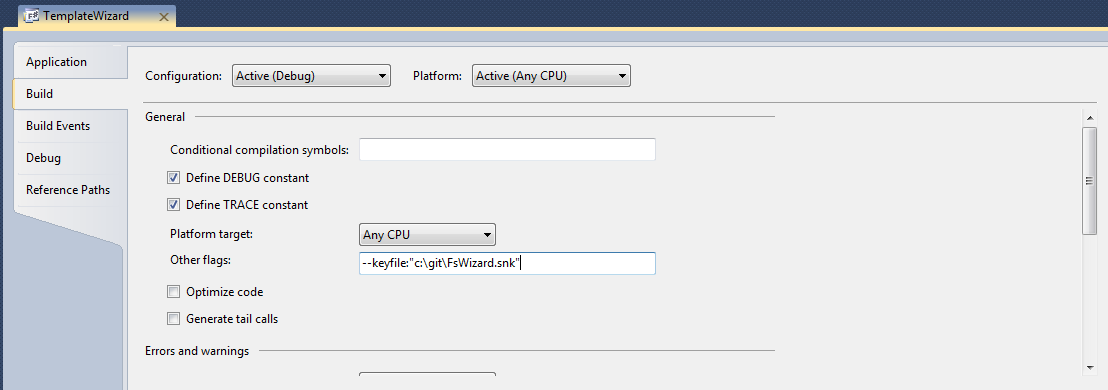
3. This assembly needs to be signed with a strong name, so add the "keyfile" switch to the "Other flags" field on the build properties for your F# template project and specify the location of your strongly named key file as shown below:

4. In the source.extension.vsixmanifest file of the VSIX project, add a new Content reference to the TemplateWizard project with a content type of Template Wizard as show here:


4. Add a WizardExtension section to your project collection .vstemplate file (named FSMVC3.vstemplate in the F# and C# ASP.NET MVC 3 Template)
 <WizardExtension>
   <Assembly>FSharpMVC3TemplateWizard, Version=0.0.0.0, Culture=neutral, PublicKeyToken=ba79043a32149735</Assembly>
   <FullClassName>FSharpMVC3TemplateWizard.TemplateWizard</FullClassName>
 </WizardExtension> 

5. Repackage your multi-project template as described in this post.

6. Build it, test it, and call it a day.

Where to go from here:

This simple edition to our template has solved the little problem that was previously experienced; however, we have only seen the tip of the iceberg when it comes to the power that is available to us through these template wizards. In a future post, I plan to explore these possibilities in greater details.

Thursday, March 3, 2011

Presentation: Building F# Visual Studio Application Templates

I had a fantastic time out in Redmond for the MVP Summit this year. It was great to see old friends and make many new ones. While there, I had the opportunity to speak during the MVP2MVP section of the event. The information and material for this talk is provided below.

Abstract:

Have you ever wondered how to write project templates similar to those that come out of the box in Visual Studio? In this talk we will discuss what goes into the creation of a multi-project template, how to package the template into a Visual Studio 2010 Extension file (VSIX), and how to best distribute your template to other developers. We will do this with an example of an F# multi-project template.

Slides:
Example:

The example that was used for the presentation can be found at https://github.com/dmohl/FSharpWP7BasicTemplate