Tuesday, February 22, 2011

Creating the FSPowerPack.Community NuGet Package

If you've been paying attention to NuGet over the last week (or have read my last post), you are likely aware that support for F# projects was included in the NuGet 1.1 RTM release. I'm hoping that this is the start to a significant increase in the number of F#-related packages available on the NuGet Gallery. With this goal in mind, I decided to post the steps that were taken to create the FSPowerPack.Community package along with a few helpful hints that may reduce some Googling as you go down the path of creating your first package.

Building the Package:

1. Create a metadata file called FSPowerPack.Community.nuspec to describe the package. The contents of this file are shown below:

<package xmlns:xsd="http://www.w3.org/2001/XMLSchema" xmlns:xsi="http://www.w3.org/2001/XMLSchema-instance">
  <metadata xmlns="http://schemas.microsoft.com/packaging/2010/07/nuspec.xsd">
    <id>FSPowerPack.Community</id>
    <version>2.0.0.0</version>
    <authors>Daniel Mohl (author of this NuGet package) refer to       http://fsharppowerpack.codeplex.com/ for the library authors</authors>
    <requirelicenseacceptance>true</requirelicenseacceptance>
    <description>The F# PowerPack is a collection of libraries and tools for use with the F# programming languages provided by the F# team at Microsoft.</description>
    <summary>
 The additional libraries in the F# PowerPack are functionality which is not part of the core F# release, but enables some development scenarios with F#. The PowerPack include features such as a basic Matrix library and supporting math types, FsLex and FsYacc tools for lexing and parsing, support for using F# with LINQ-based libraries, and a tool for generating HTML documentation from F# libraries. This functionality, which has previously been available in the F# CTP releases, is now available on CodePlex. The F# PowerPack will continue to evolve seperately from the main F# releases, and the features will continue to be improved and iterated upon. 
    </summary>
    <language>en-US</language>
    <projecturl>http://fsharppowerpack.codeplex.com/</projecturl>
    <licenseurl>http://fsharppowerpack.codeplex.com/license</licenseurl>
  </metadata>
  <files>
   <file src="Lib\*.*" target="Lib"/>
   <file src="Lib\Net20\*.*" target="Lib\Net20"/>
   <file src="Lib\Net40\*.*" target="Lib\Net40"/>
   <file src="Lib\sl3\*.*" target="Lib\sl3"/>
   <file src="Lib\sl4\*.*" target="Lib\sl4"/>
   <file src="Tools\*.*" target="Tools"/>
   <file src="Content\*.*" target="Content"/>
  </files>
</package>
The following list provides a little bit of additional information surrounding a few of the elements that may not be completely obviously during the initial viewing of the file.

id - The id element needs to match the package id that is or will be registered on the NuGet Gallery. It is the primary means by which users will locate and retrieve your package.
version - The version element defines the version of this particular configuration and is one of the keys that others can use to create dependencies on your package. Additionally, the NuGet Gallery will only allow uploads of the same package if the version has been modified.
files - This element should contain a file element for each directory and/or sub-directory that has content that should be included in the package.

2. Create the "Lib", "Content", and "Tools" directories in the same directory that contains the FSPowerPack.Community.nuspec file.

3. Place the files that you plan to distribute into these newly created directories. Information related to the types of files that each of these directories should contain is defined below:

Lib - Contains any libraries that will be added to the project as a reference. The Lib folder can contain sub-folders that allow targeting of specific frameworks such as Net11, Net20, Net40, sl3, and/or sl4. In the case of FSPowerPack.Community the appropriate framework DLLs were added to folders named Net20, Net40, sl3, and sl4.

Content - Contains any source files that you wish to add to the project during package installation. The source file names follow a convention of {file name}.{file extension}.pp. For the FSPowerPack.Community package, there is only one F# source file that should be included. It is named FSPowerPack_Example.fs.pp and the contents of the file are shown below (Note: This source code is from the F# PowerPack CodePlex page - http://fsharppowerpack.codeplex.com/):
module FSPowerPowerExample

open System

let v  = vector [1.0;1.0;1.0] + vector [2.0;2.0;2.0] // (3.0; 3.0; 3.0)
let c = complex 0.0 1.0 * complex 0.0 1.0 // -1r+0i
let r = (1N/2N) * (1N/3N) // 1/6
Tools - Contains any files that you wish to include with the package, but that should not be added as references to the project. This directory can also contain a few specially named PowerShell scripts (i.e. Init.ps1, Install.ps1, Uninstall.ps1) that provide hooks into the install/uninstall processes. In the case of FSPowerPack.Community, there wasn't a need to include any of the PowerShell scripts; however, several additional DLLs and EXEs were included that may be useful in various scenarios.

4. Create the nupkg file by running a command with the nuget.exe tool found at http://nuget.codeplex.com/releases/view/55760. The output file name follows the convention of {id from the nuspec file}{version from the nuspec file}.nupkg. The command used to create the FSPowerPack.Community.nupkg file was:

nuget.exe pack c:\git\FSPowerPack.Community\FSPowerPack.Community.nuspec -b c:\git\FSPowerPack.Community -o c:\git\FSPowerPack.Community

5. Test all scenarios locally (visit "Hosting Your Own Local and Remote NuPack Feeds" for information on how to setup a local feed)

6. If you don't have a NuGet gallery account, go to the nuget.org site and register. Follow the instructions in the confirmation email to be granted access as a contributor. Once you have an account, follow the process for uploading your *.nupkg file to the NuGet Gallery.

7. Test all scenarios once more with the NuGet Gallery as the source.

Conclusion:

This blog post walks you through the steps that were needed to create the FSPowerPack.Community NuGet Package. There are a number of additional options and featured available to a NuGet package author and new features/functionality are being added all of the time. Check out the NuGet CodePlex site (http://nuget.codeplex.com/) to find out more. Hopefully, this will give you the tools to start building your first F# NuGet package. I look forward to trying out your creation.

Thursday, February 17, 2011

F# PowerPack on the NuGet Gallery

A few days ago, the F# PowerPack was packaged up and uploaded to the NuGet Gallery.


For those who don't know, "the F# PowerPack are functionality which is not part of the core F# release, but enables some development scenarios with F#. The PowerPack include features such as a basic Matrix library and supporting math types, FsLex and FsYacc tools for lexing and parsing, support for using F# with LINQ-based libraries, and a tool for generating HTML documentation from F# libraries." (http://fsharppowerpack.codeplex.com/)

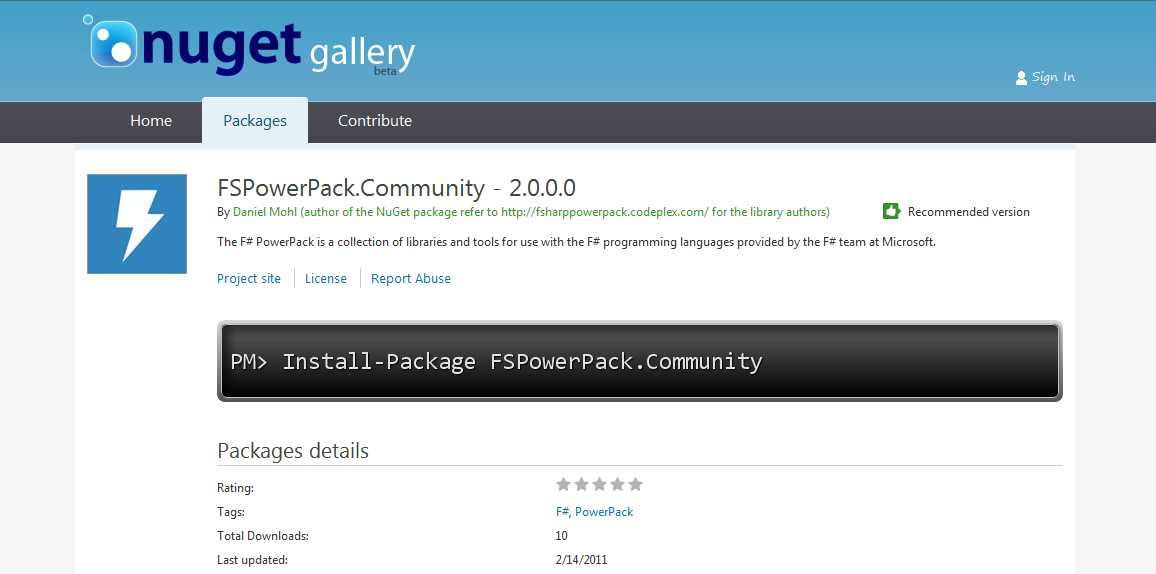
The FSPowerPack.Community NuGet Package provides a quick and easy way to get started with F# PowerPack in your project. To install the package, follow the instructions outlined here (using "FSPowerPack.Community" in place of "FsUnit"). The package installation process will retrieve all the associated files, add appropriate references, and add a F# source file with a few simple examples.

In a future post, I'll talk a little about how this NuGet package was created. If you can't wait, there are several places that have great information on creating NuGet packages such as Phil Haack's "Uploading Packages to the NuGet Gallery" post, Scott Hanselman's latest post, and the NuGet CodePlex site. You can also find all the files that I used to create this package on my GitHub.


Sunday, February 13, 2011

FsUnit Now On NuGet Gallery

FsUnit 0.9.0 is now available on NuGet Gallery.

FsUnit is a library that "makes unit testing with F# more enjoyable." (http://fsunit.codeplex.com/)

The version 0.9.0 of the FsUnit NuGet package pulls down NUnit and FsUnit 0.9.0, adds the appropriate references to the designated project, and puts in an fs source file with a simple example of a class and a few tests.

To get started using this package, you will first need to make sure that you have version 1.1 (which was released yesterday) or higher of the NuGet.Tools VS2010 extension. Once you have that, there are a couple of different ways to install the FsUnit package.

Option 1:

1. Create or open a F# project.
2. Open the Package Manage Console window (this can be found in Visual Studio 2010 under view -> Other Windows -> Package Manager Console).
3. In the Package Manager Console, type "Install-Package FsUnit".
4. Hit "Enter" and wait for several seconds until you see a few messages related to downloading and installing the package.

Option 2:

1. Create or open a F# project.
2. In the Solution Explorer, right click "References" and select "Add Library Package Reference...".
3. In the resulting window, select "Online" then search for "FsUnit".


 4. Click the Install button and wait for the installation to complete.

Tuesday, February 8, 2011

Version 1.1 of the F# ASP.NET MVC 3 Template

A new version (1.1) of the F# ASP.NET MVC 3 Template is now available on Visual Studio Gallery. This version primarily fixes a few bugs that have been reported.

For instructions on how to get started with this template, visit this blog post.

Sunday, January 23, 2011

FSRepository - A New NuGet Package

UPDATED: NuGet Package Manager 1.1 (release today - 2/12/2011) now supports F#!

A new NuGet package is now available in the NuGet gallery called FSRepository. This package adds a few F# source files and assembly references to your F# project so that EFCodeFirst 0.8 can be used for data access.

What is NuGet?
If you haven't heard, "NuGet is a Visual Studio extension that makes it easy to install and update open source libraries and tools in Visual Studio. When you use NuGet to install a package, it copies the library files to your solution and automatically updates your project (add references, change config files, etc). If you remove a package, NuGet reverses whatever changes it made so that no clutter is left." (http://www.nuget.org/)

What is EFCodeFirst?
I first heard about EFCodeFirst in a blog post by Steve Sanderson. In that post he states "In case you’re wondering, EFCodeFirst is the new super-elegant version of Entity Framework that persists plain .NET objects to a relational database without any configuration fuss...".

How Do I Use FSRepository 0.4?
Support for F# projects was added to NuGet by David Fowler on 1/20/2011. Because this is such a recent addition, the version of the NuGet Package Manager on Visual Studio Gallery doesn't yet have this functionality. However, you can get the latest from http://nuget.codeplex.com/ to create a version of the visual studio extension that contains this functionality (or just wait for a few days/weeks until the next version is released on Visual Studio Gallery). If neither of these options work for you, shoot me an email and we can discuss alternatives.

Once a version of NuGet Package Manager that includes support for F# projects is installed, you can install the FSRepository 0.3 package by doing the following:

1. Create or open a F# project.
2. Open the Package Manager Console window (this can be found in Visual Studio 2010 under View -> Other Windows -> Package Manager Console).
3. In the Package Manager Console, type "Install-Package FSRepository":

4. Hit "Enter" and wait for several seconds until you see something like this:


As long as there were no errors, your F# project should now contain the new assembly references and F# source files.


You can find the files that were used to create this NuGet package on my GitHub.

Thursday, January 20, 2011

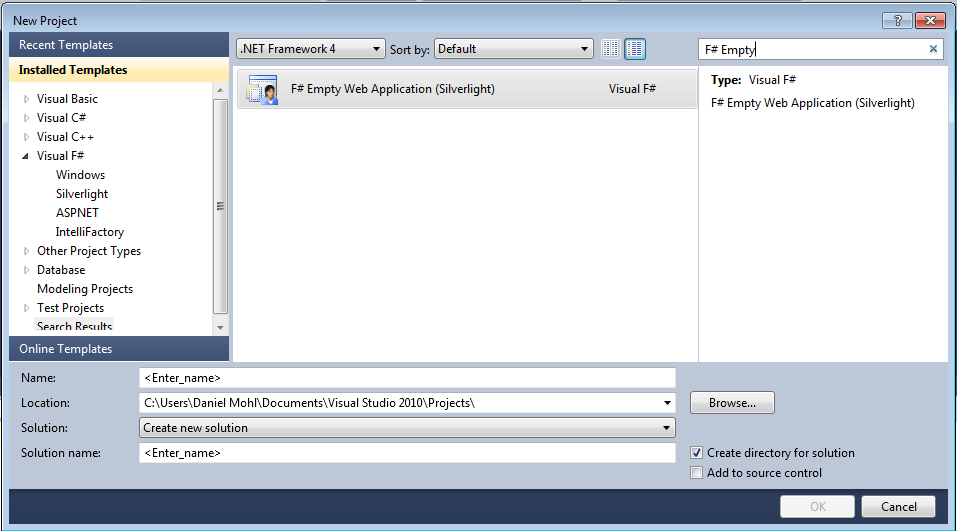
New F# Empty Web Application (Silverlight) Template

There is a new F# Silverlight application template up on Visual Studio Gallery that generates an "empty" Silverlight solution. The generated solution provides the necessary structure to start F# Silverlight development, but does not include any sample code. While the previously provided F# Silverlight template (discussed at http://bloggemdano.blogspot.com/2010/08/f-silverlight-template.html) provides a nice example, it's not always useful if you have a need for an entirely different type of application.

The new F# Empty Web Application (Silverlight) template can be downloaded from the web or through the Online Templates feature of Visual Studio 2010.

Here are the steps: (Note: Visual Studio 2010 Professional (or above) is required to use this template.)

1. In Visual Studio 2010, navigate to File -> New and select Online Templates.
2. Search for "Daniel Mohl" or "F# Empty Web Application (Silverlight)":


As with most of the things posted on this blog, you can find the full source used to create this template on my GitHub site.

Sunday, January 16, 2011

New F# ASP.NET MVC 3 Template on Visual Studio Gallery

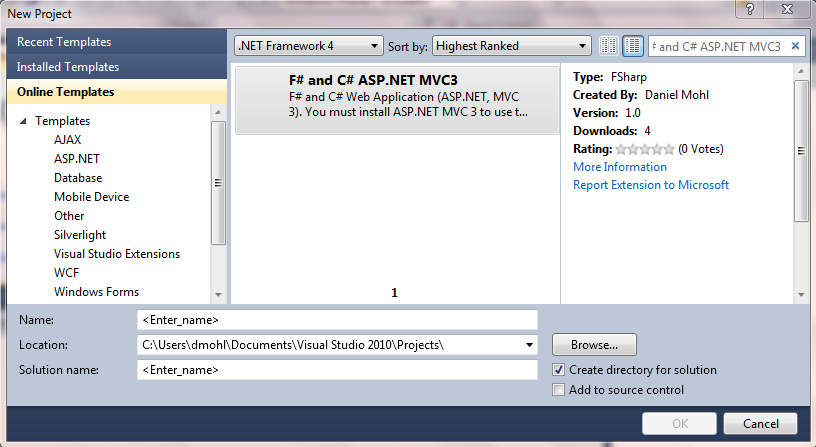
There is a new F# ASP.NET MVC 3 project template on Visual Studio Gallery. This template is a version of the F# ASP.NET MVC 2 project template that has been migrated to ASP.NET MVC 3. ASP.NET MVC 3 has several cool new features. Check out http://haacked.com/archive/2011/01/13/aspnetmvc3-released.aspx and http://www.asp.net/mvc/mvc3 for more information.

To get started, do the following (Note: Visual Studio 2010 Professional (or above) is required to use these templates):

1. Install ASP.NET MVC 3. View http://www.asp.net/mvc/mvc3 for more information.
2. In Visual Studio 2010, go to File -> New and select Online Templates.
3. Search for Daniel Mohl or "F# and C# ASP.NET MVC3":


As usual, you can find the full solution used to create this template on my GitHub.